3D Garden Planner: Design Your Garden in Your Browser
The free homeplot garden planner runs in your browser. Draw your lot, paths, beds, a pond, and trees, explore in 3D, and create a realistic AI photo.

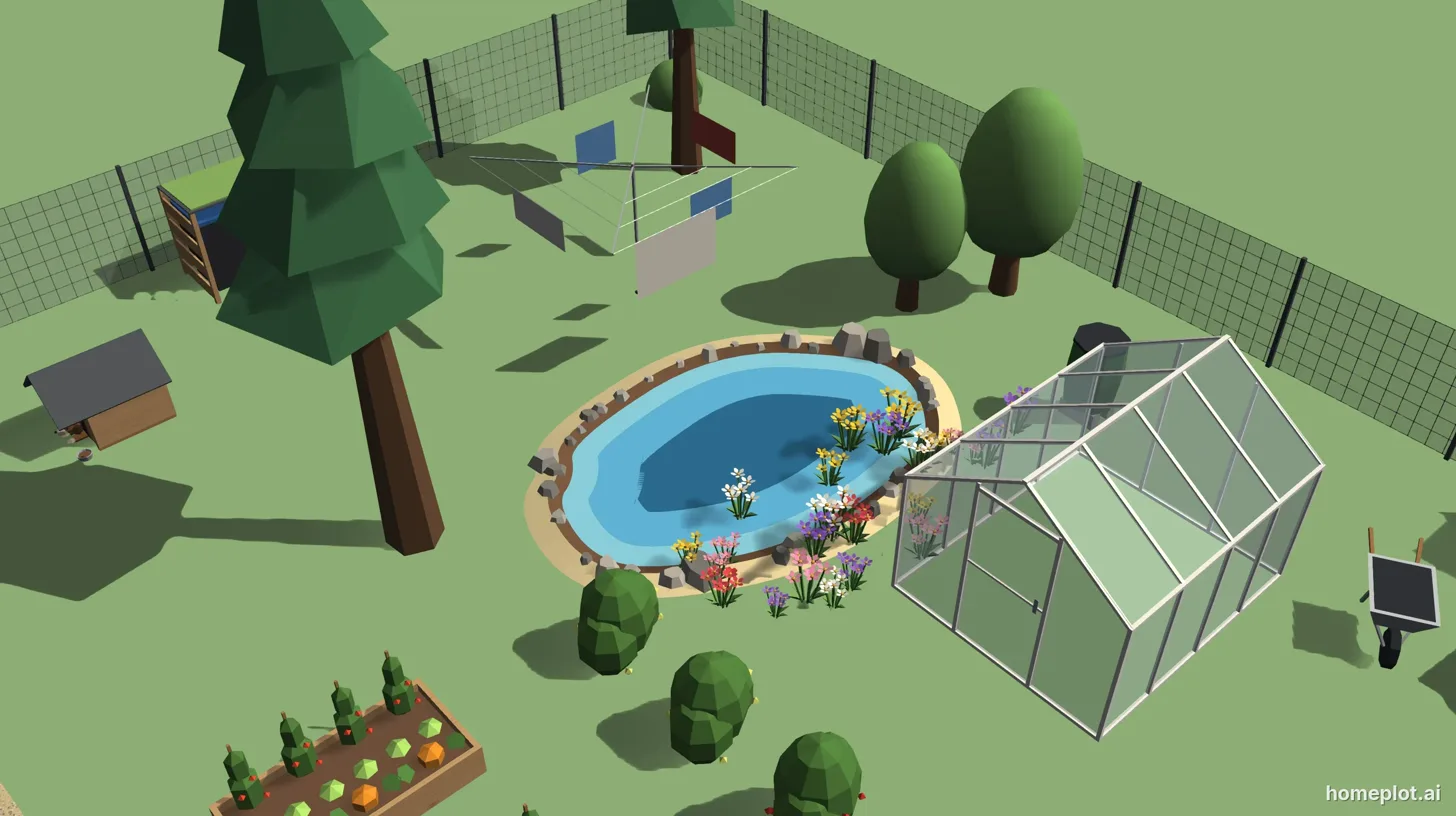 3D AI
A garden planner comes in handy when you have an idea in mind but aren't entirely sure it will all work in real life. In the homeplot editor, you can draw your garden, view it in 3D, and walk through it. It runs in your browser, there's nothing to install, and the editor itself is free.
What you can design in the planner
- Lot: draw your lot to its actual dimensions, including an irregular outline. Add a fence around it with a single toggle.
- Fences and walls: a picket fence, rail fence, solid wood fence, stone wall, wire mesh fence, or gabions. Place a pedestrian or driveway gate directly on the fence.
- Paths: use compacted aggregate, gravel, stone, pavers, or asphalt, in whatever width you need.
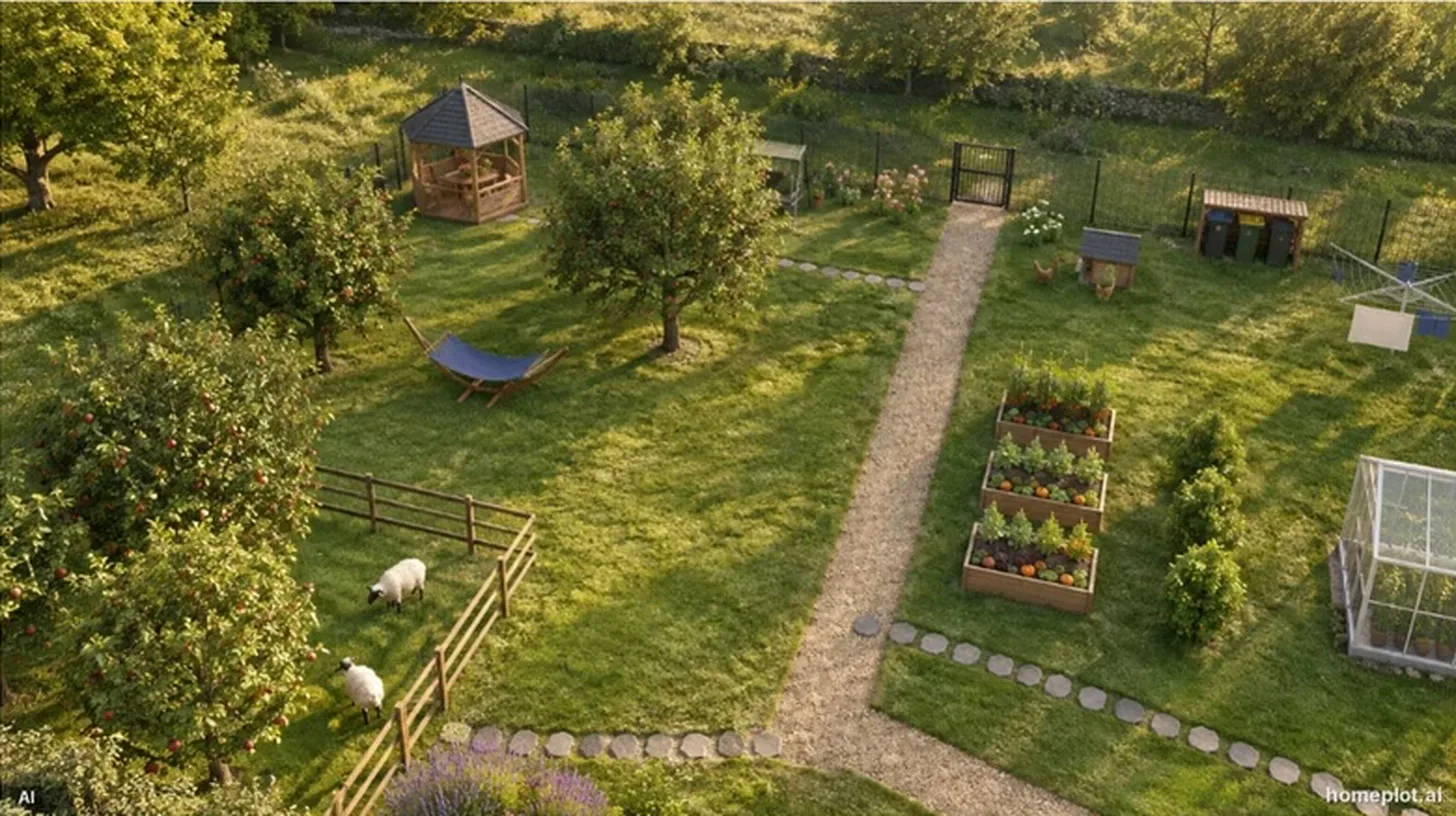
- Garden beds: a rectangle, circle, or custom shape with edging made of wood, stone, Corten steel, or brick. Plant them with flowers, perennials, vegetables, or herbs. You can set the height of each raised bed.
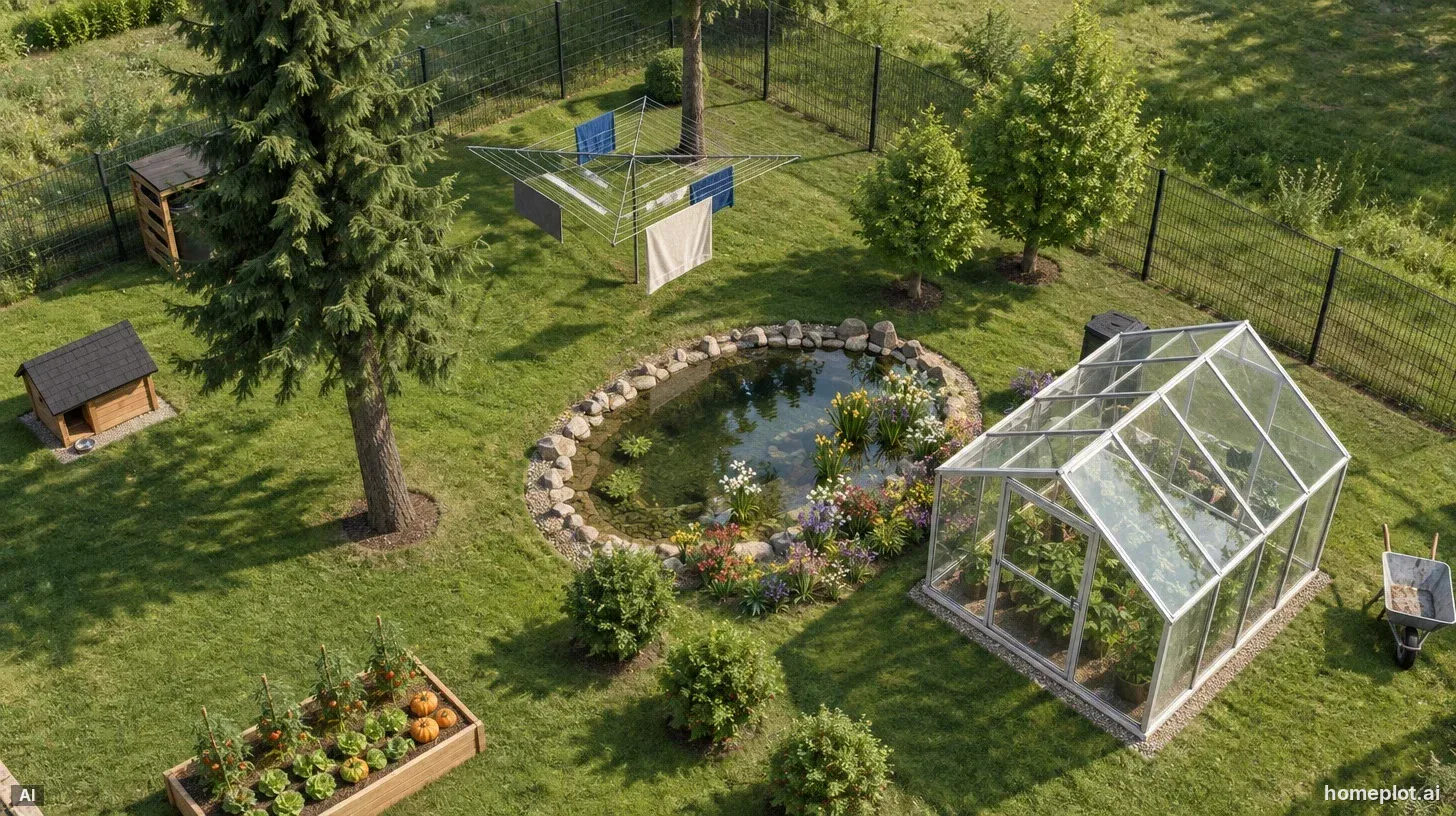
- Pond: draw the outline freehand, click to create straight segments, or paint it with a brush. A rocky shoreline is created automatically.
- Plants: use a brush to plant trees, shrubs, grasses, and flowers and place rocks directly on the lawn.
- Terrain: plateaus, slopes, and cliffs, where paths automatically turn into stairs.
- Structures and equipment from the catalog: a greenhouse, pergola, sauna, pool, fire pit, grill, compost bin, firewood shed, carport, garden benches, and more.
You can also draw and furnish a house on the same lot. If you're planning to build, you'll see the complete design: how the house casts shade on the garden and what the views from the windows will look like.
How to get started
The quickest way is to open a ready-made example and customize it. If you'd rather start from scratch, open a blank 30 × 25 m lot and adjust its dimensions and shape first.
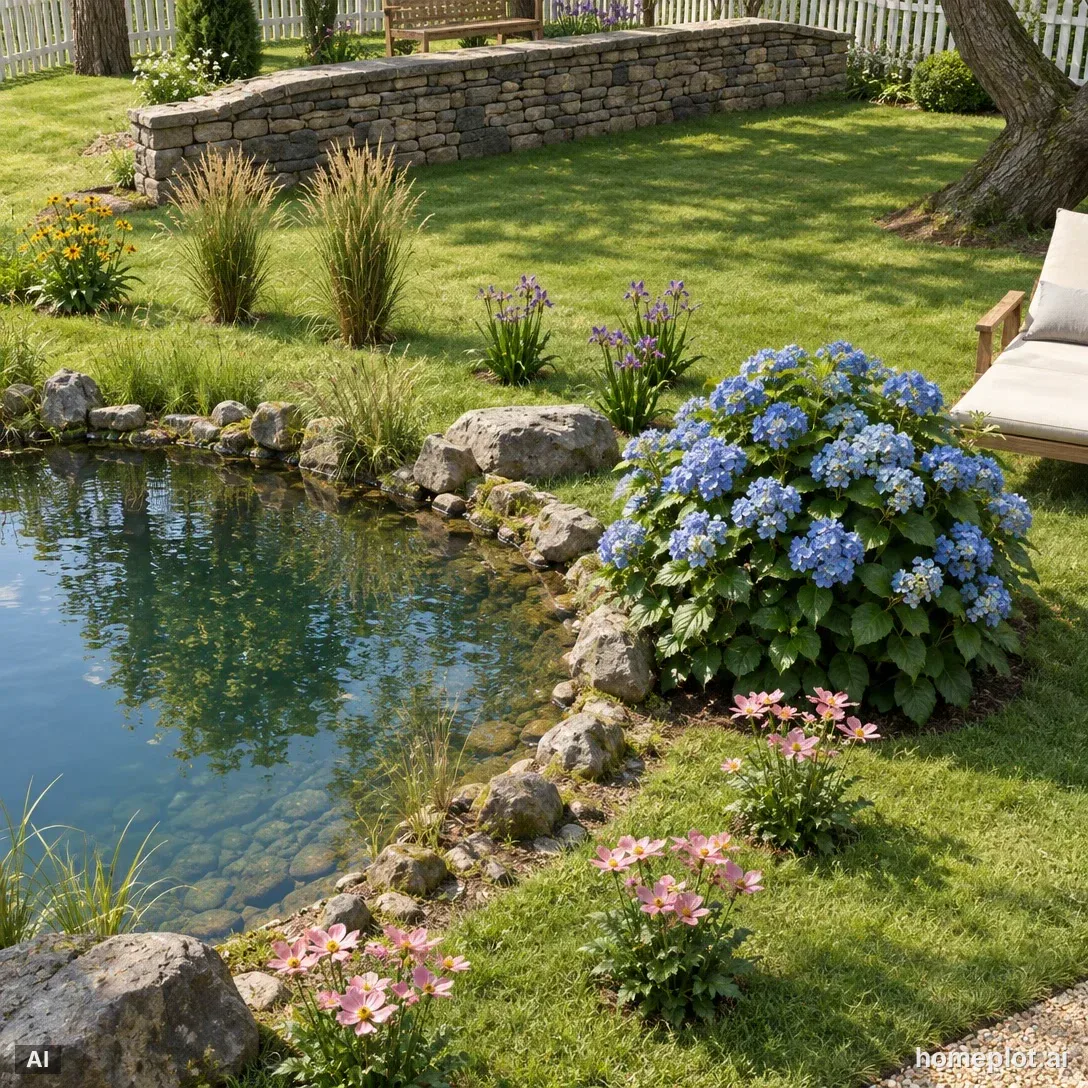
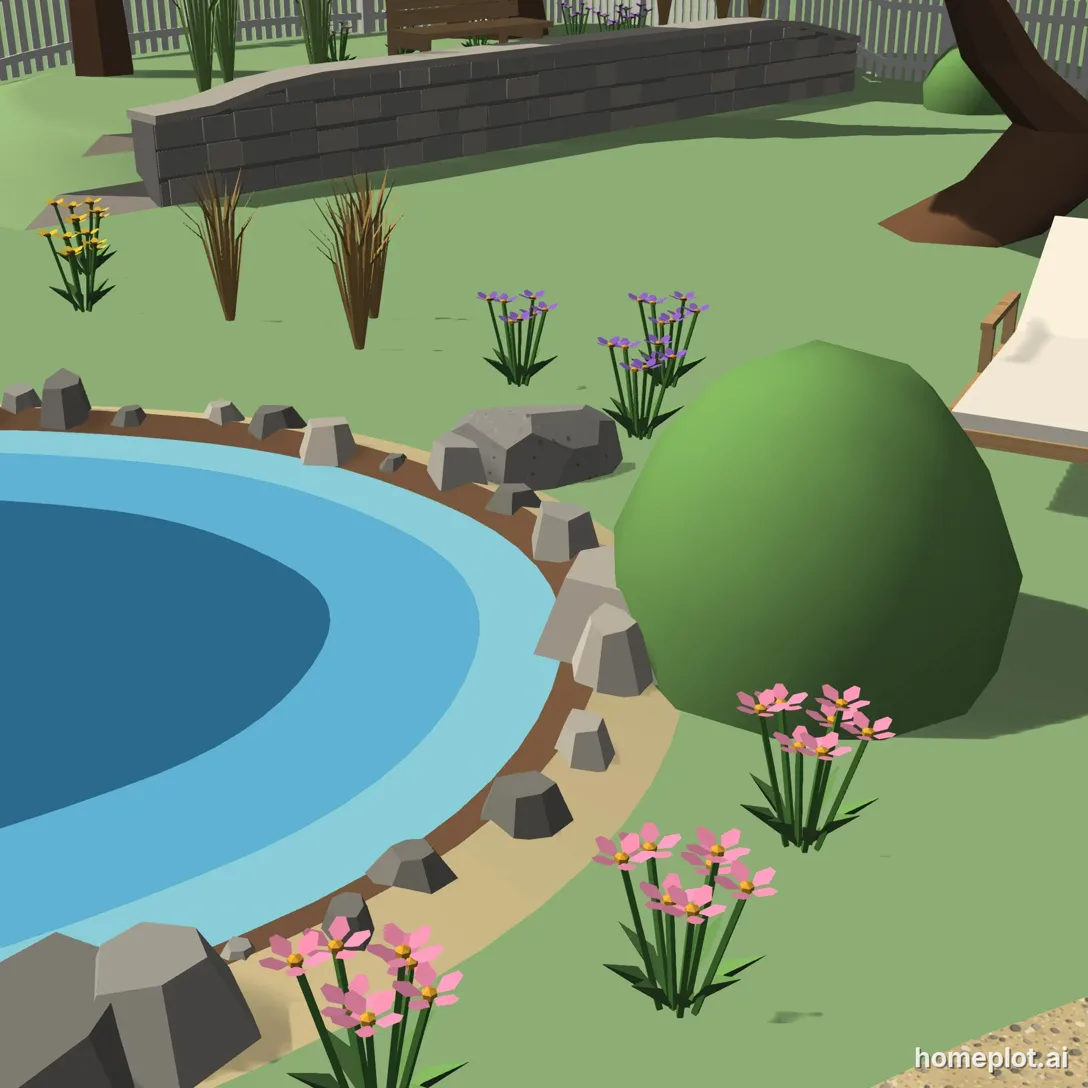 3D AI
Draw in 2D, check your design in 3D
The plan view is useful for checking dimensions: how much space is left between a garden bed and the fence, or whether a wheelbarrow will fit through. In 3D, you can see heights, shadows, and views. Switch between the two views with a single button. You can move trees, structures, and furniture in both 2D and 3D.
How to turn your design into a photo with AI
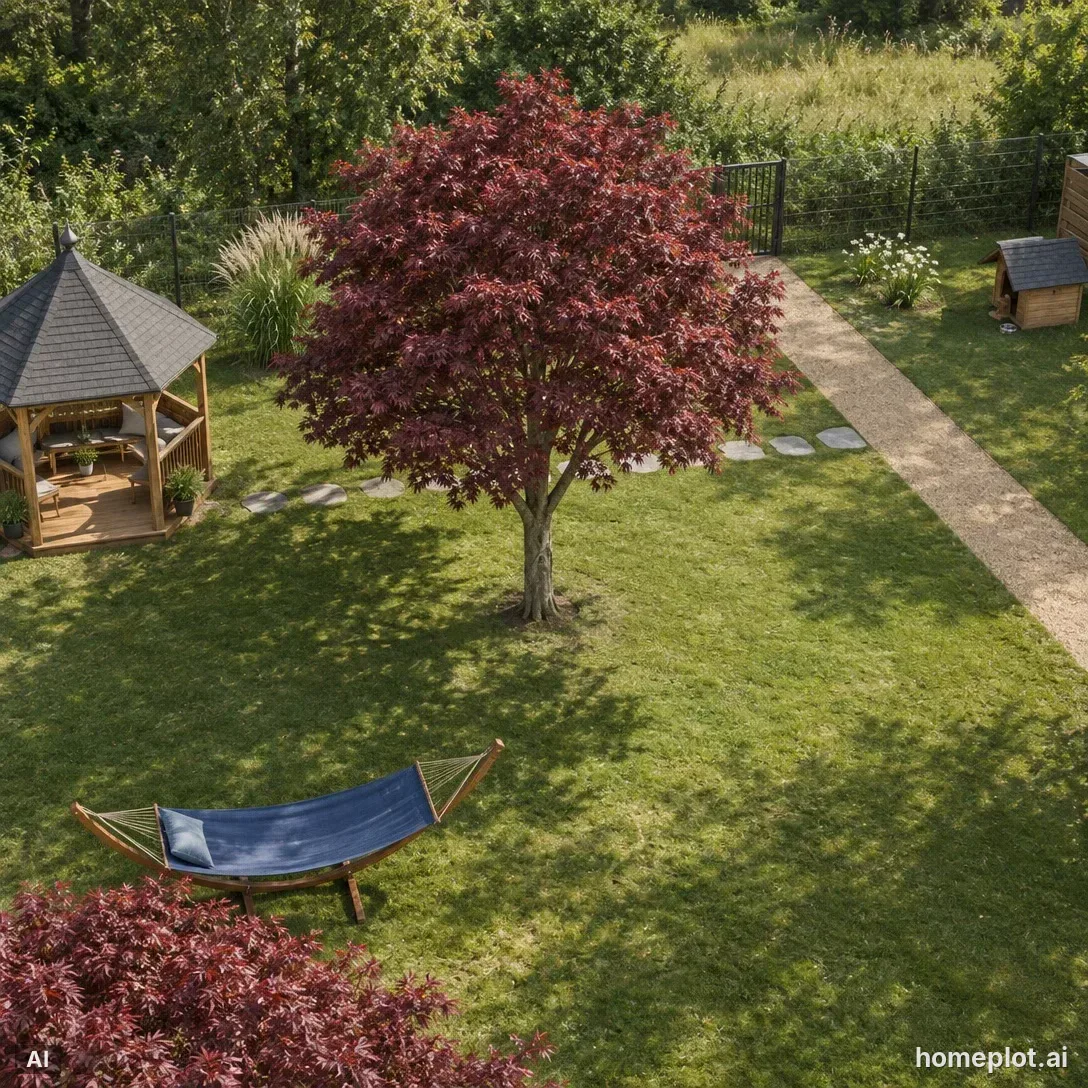
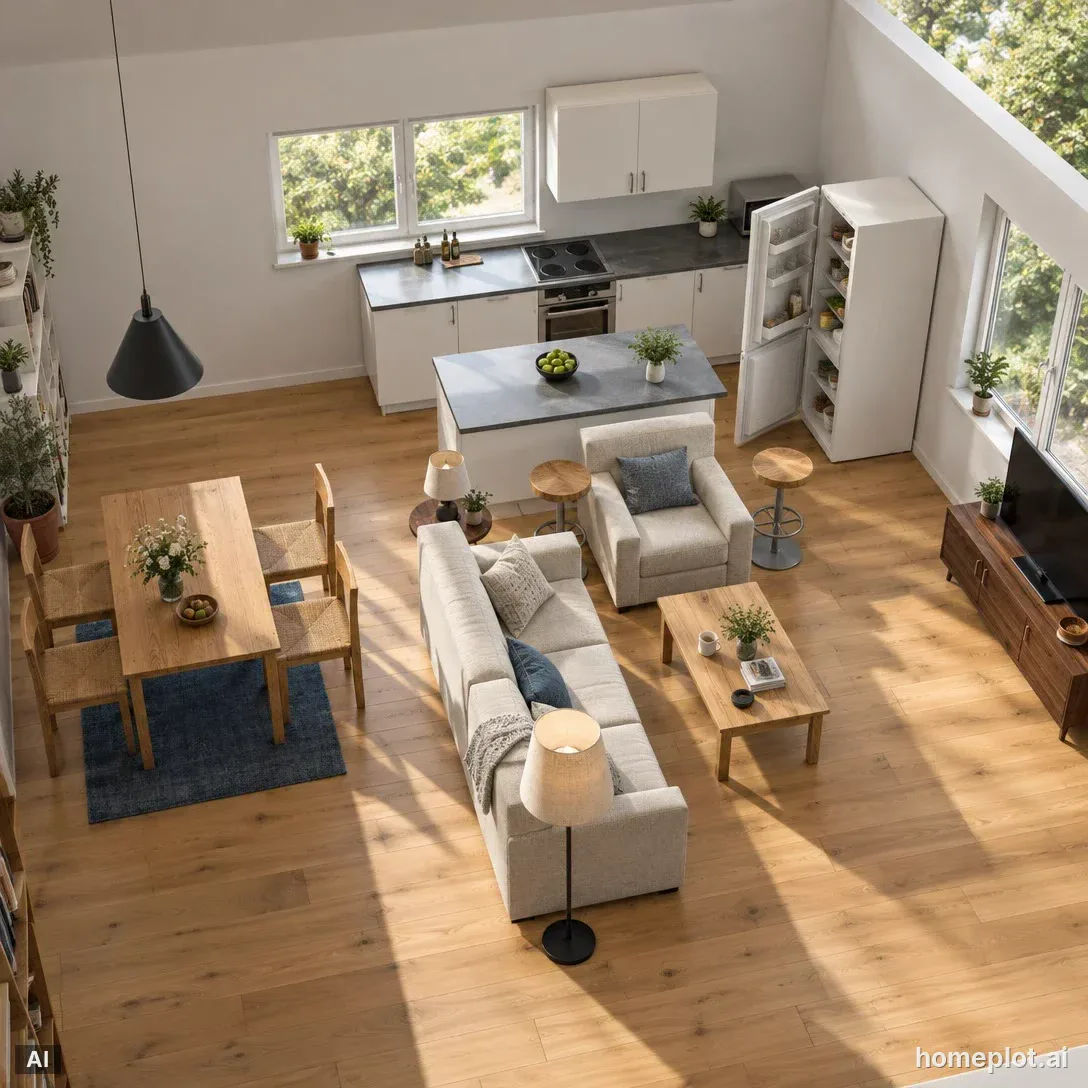
You can use AI to create a realistic photo from any view in the editor. AI preserves what you've drawn and the layout of the elements, adding materials, grass, and lighting. A photo is useful when showing your design to family members or a landscaper who finds a 3D model hard to interpret.
How much the planner costs
The editor is free: the lot, house, garden, walkthrough, and images from the editor. You only pay for AI. You get 10 AI credits to start, one AI photo costs 5 credits, and you can buy additional credits as a one-time purchase with no subscription. See the pricing page for current prices.
What the planner can't do
Here's what to keep in mind:
- It won't recommend plants for your soil and climate. The trees, shrubs, and flowers in the editor represent general shapes, not a database of varieties. You can add a specific plant to the photo using an image of it from the web.
- It doesn't produce construction drawings. Your design can serve as a starting point for discussions with the local building authority or a landscaping company, but it doesn't replace professional construction plans.
- It works on a phone, but a computer is more comfortable. The editor works on computers, tablets, and phones. However, a larger garden is easier to draw with a mouse on a big screen.
You'll find the full process, from measuring your lot to completing your design, in the guide How to Design a Garden Step by Step.
Sample project
Garden with a pond
Pond with stones, terrace behind a stone wall, pergola with seating, fire pit, trees and flowers.
You'll sign up on assetlog.ai (homeplot is part of it) and come straight back to the editor.